
How to Make Faceless Promo Videos for Your App With AI (2026)
A practical walkthrough of turning one sentence into a finished TikTok, Reel or YouTube Short for your app using BakeVideos, plus where your App Store screenshots fit into the video and what not to do with the result.
Quick answer: The fastest way to make a faceless promo video for your app in 2026 is a one-sentence-to-video tool like BakeVideos. You type a brief ("a 20-second short on why most budgeting apps fail, ending with our app as the fix"), pick 9:16, and it writes a hook-first script, records a natural voice, matches licensed stock footage to each line, syncs word-level captions and music, then renders a 1080p MP4 with no watermark in about a minute. It can't draw your app's screens, so you drop real screenshots into the scenes yourself. Make those with SnapMonk first, upload them into the scene editor, and you have a video you can post on TikTok, Reels and Shorts the same afternoon. Just don't upload it as an App Store preview, which has its own rules.
I've written a lot on this blog about screenshots, because that's what we build. But every time I talk to an indie developer about getting their first installs, the same question comes up a few minutes in. "Should I be doing short-form video?" And then, more quietly: "I really don't want to be on camera."
So I spent a few evenings this week with the faceless video tools, the ones that promise a finished Short from a sentence. BakeVideos is the one I kept coming back to, partly because of how it treats footage licensing and partly because the editing model is sane. This is the workflow I landed on, with the parts where screenshots matter called out.
What BakeVideos actually is
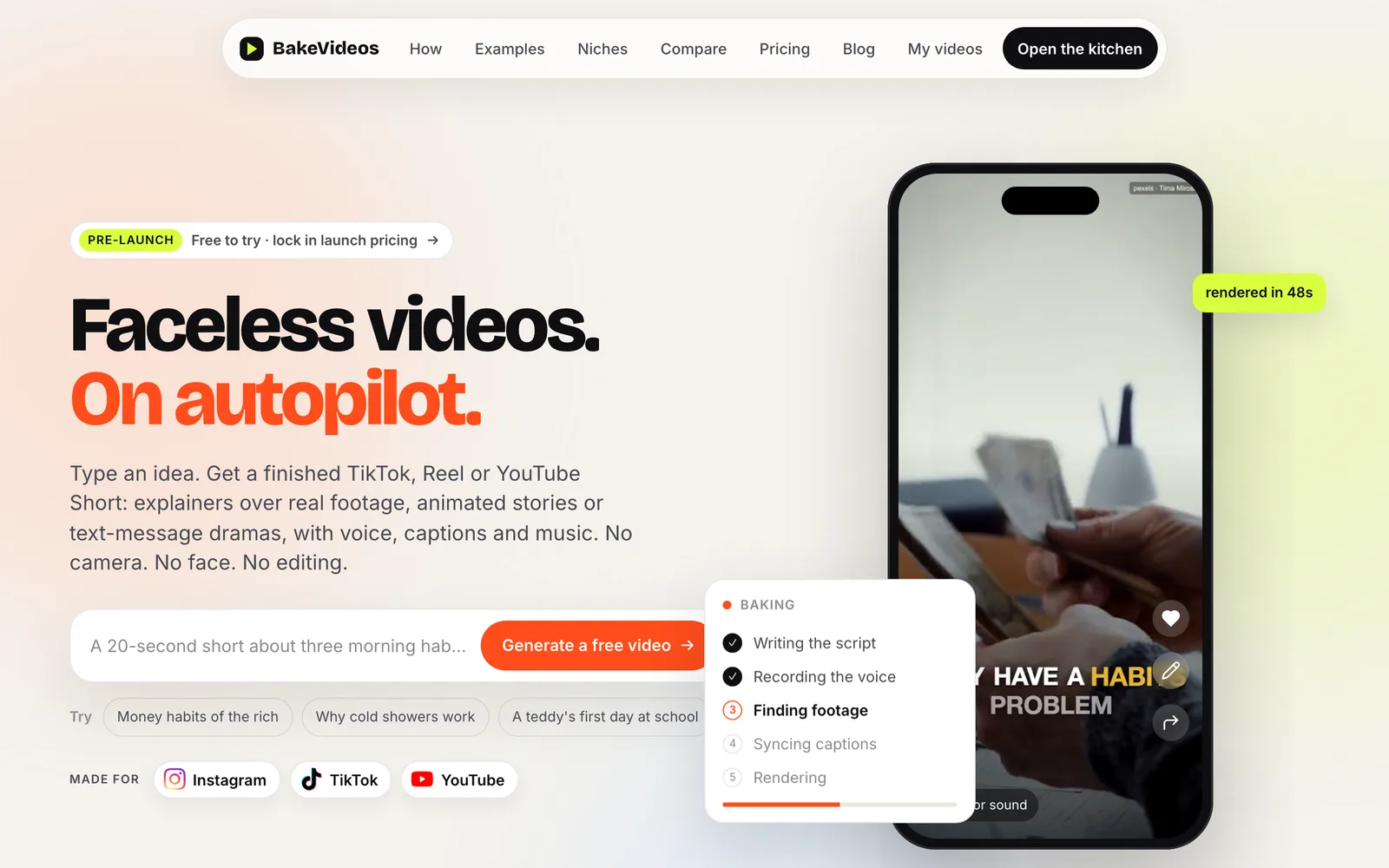
BakeVideos is a faceless AI video generator aimed at TikTok, Instagram Reels and YouTube Shorts. The homepage line is "Faceless videos. On autopilot." and the pitch under it is accurate: type an idea, get a finished video with script, voice, footage, captions and music. No camera, no face, no timeline editing unless you want it.
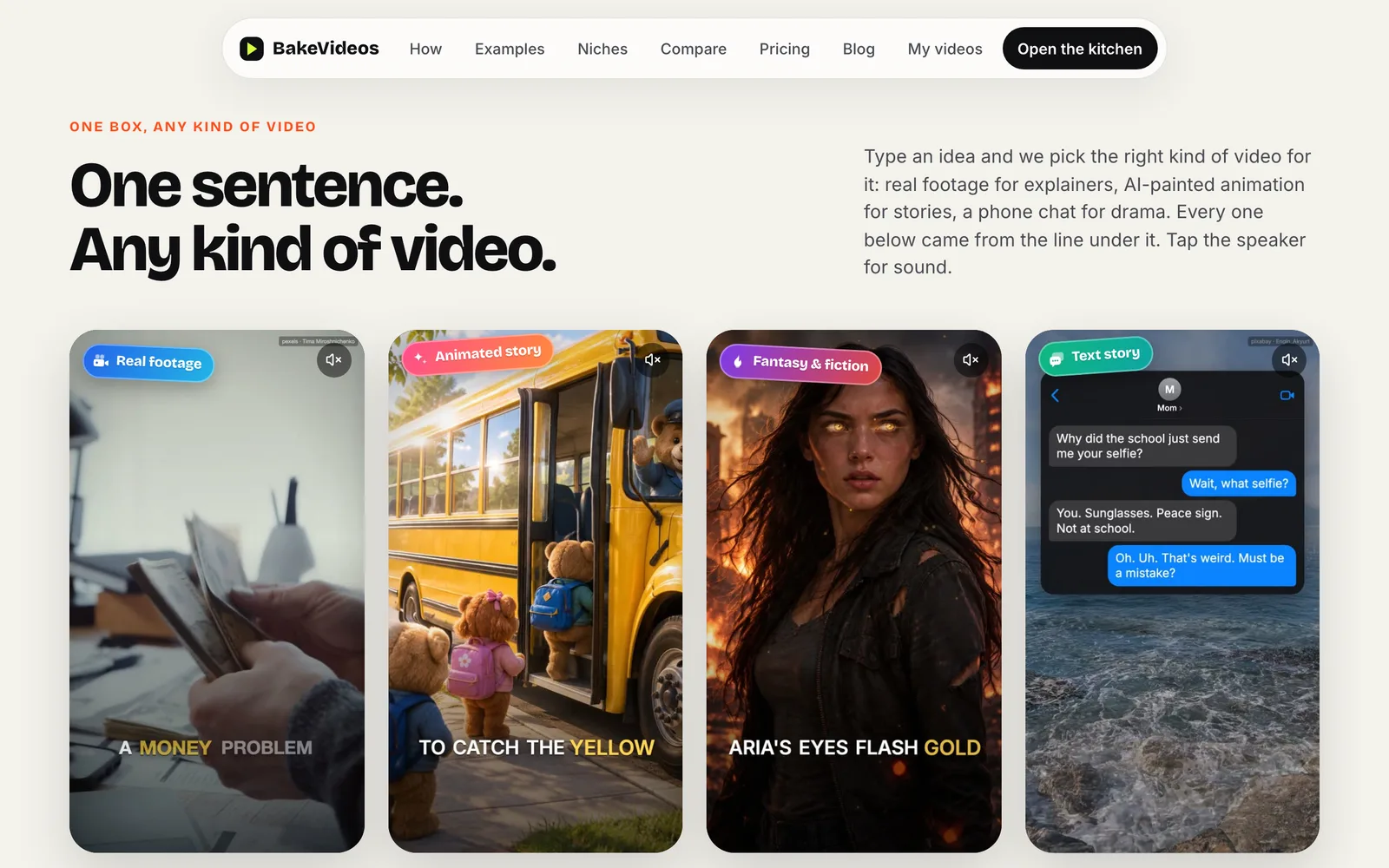
It handles three kinds of video, and picks the kind for you from the brief:
- Explainers over real licensed stock footage from Pexels and Pixabay. This is what you want for an app.
- Animated stories painted by AI, for things stock can't film (talking teddies, dragons, bedtime stories).
- Text stories, where the whole video is a phone chat with bubbles popping in and each side read in its own voice.
The kitchen metaphor runs through the whole product. You "order" a video, it "bakes," you "serve" it. Their render pipeline shows you each step live: writing the script, recording the voice, finding footage, syncing captions, rendering. The demo on the homepage shows a 48-second render time, and the FAQ says to expect about a minute for a 20 to 40 second short. That matched what I saw.
Formats are 9:16 for TikTok, Reels and Shorts, 1:1 for feed and LinkedIn, and 16:9 for YouTube, ads and web. Export is 1080p MP4 with no watermark on every paid plan, and a license record is stored with each render so you can show your work if a platform ever asks.
Step 1: write the brief like a hook, not a feature list
The input box takes one or two sentences. Their own guide on making Shorts with AI says to cover the topic, the audience, the tone and how it should end, and that the generated script lands at 70 to 110 words with the hook first.
The trap for app developers is writing the brief like your App Store description. "A habit tracker with streaks, reminders and widgets" produces a boring video. Nobody scrolls for a feature list.
What worked for me was writing the brief as a problem the viewer already has, with the app as the last line:
- "A 25-second short about why people quit habit trackers after 9 days. Blunt tone. End by saying Streaky only asks for one habit."
- "Three money habits of people who never overdraft. Calm voice. Last line mentions the Pocket app does this automatically."
- "A text-story where a roommate keeps asking to split bills at 3am. Funny. The payoff is the Splitwise-style app that ends the argument."
Same app, three very different videos. You can tell which style of video you'll get from the line under the prompt box, and one tap switches it between real footage and AI pictures.
Step 2: pick 9:16 and a voice, then let it bake
Choose 9:16 for anything going to TikTok, Reels or Shorts. Pick a voice. Hit generate. Then watch the steps tick through. You can cancel any time, which matters more than it sounds when you're iterating on briefs and don't want to burn a credit on a bad one.
A short under a minute is what you'll get here. Long videos (one to five minutes, 16:9) are a separate credit type, and those are more for YouTube explainers than app promotion.
Step 3: put your real app screens into the scenes
Here's the part most people miss, and it's the reason I'm writing this on a screenshot blog.
BakeVideos is upfront about what it won't do. From their FAQ, under "What can't it do?": your own face, real celebrities, copyrighted characters, or your app's own screens. For an app, the advice is to upload real screenshots or clips into any scene instead.
So the stock footage carries the story, and your app has to show up as an upload. That means the quality of what you upload is the quality of your product shot in the video. A raw, unframed simulator capture looks cheap next to the licensed footage around it.
My workflow:
- Generate the screenshot set in the SnapMonk composer. Describe the app, get a full set with device frames and short captions, pick the two or three frames that match the video's story.
- Export at full resolution. The 6.7-inch App Store size is 1290×2796, which is already 9:16 and drops into a vertical video with no cropping.
- In the BakeVideos scene editor, find the scene where the app gets named and replace the footage with your screenshot. Hold it for a beat (there's a "hold" control per scene) so the viewer actually reads the caption.
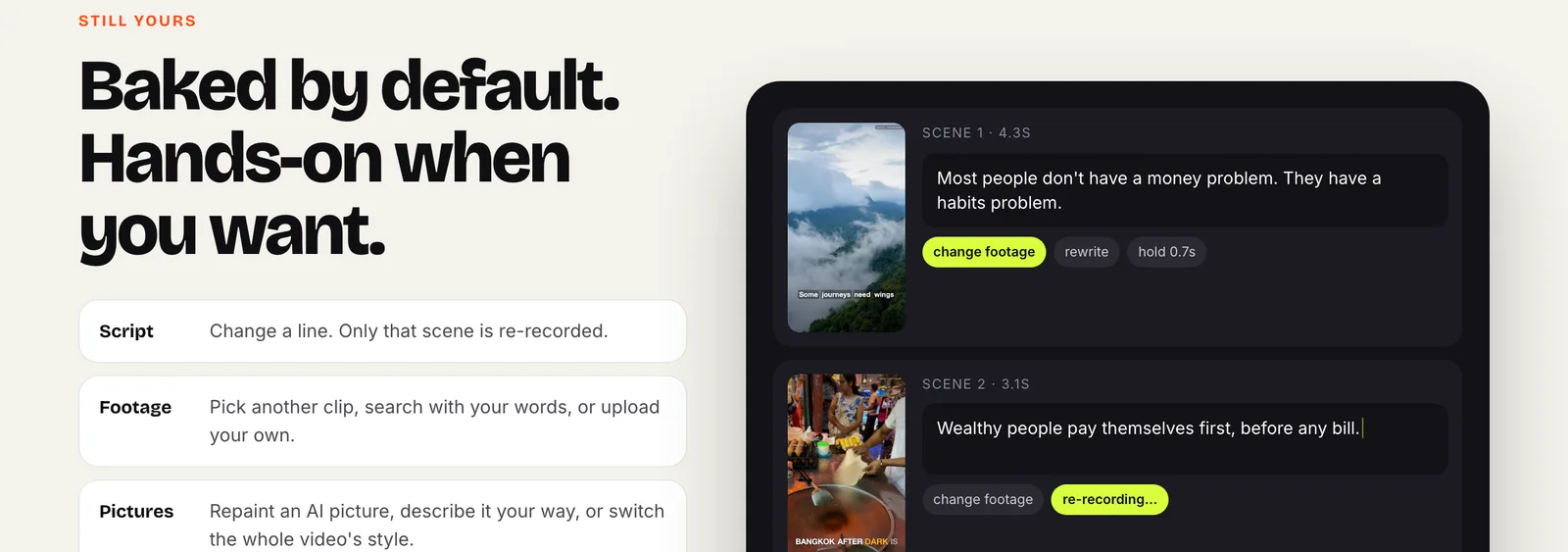
The scene editor is the part of BakeVideos I liked most. Each scene is a line of script plus a clip. Change a line and only that scene is re-recorded, not the whole voiceover. Swap footage by searching with words, picking another clip, or uploading your own. Reorder, delete, hold a beat, pick a transition. Then render a new version. Edits and re-renders don't consume video credits, which is the right call and not every tool makes it.
One screenshot-specific tip: use a frame with a short, big caption on it rather than a plain screen. In a video the caption does double duty as an on-screen headline. The same design principles that work at thumbnail size in the store work at 9:16 in a feed, because the viewer gives you about a second either way.
Step 4: export and post, with the AI label if it applies
Download the 1080×1920 MP4. If the video used AI-painted pictures rather than real footage, the studio reminds you about each platform's AI label at export. Real-footage explainers with your own screenshots don't trigger that, but read the reminder anyway. YouTube and TikTok both have disclosure rules now and both have ways of noticing.
Title the post with the hook, not the app name. "Why most habit trackers die on day 9" gets the tap. "Streaky 2.1 is out now" doesn't.
Do not upload this as your App Store preview
This deserves its own heading because I can see someone doing it.
An App Store app preview and a Google Play promo video are not the same asset as a TikTok. Apple's rules for previews require footage captured from the app itself, running on the device, with very limited use of anything that isn't the app. A stock-footage explainer with a screenshot in scene four will get rejected, and it'll cost you a review cycle.
Use BakeVideos output for social, ads and your landing page. For the store, your screenshots are still the asset that moves conversion, and if you want a preview, record the app. Our launch checklist walks through every store asset and which ones are worth the time.
Who it's for, and pricing
BakeVideos leans toward faceless channel creators: finance, history, motivation, psychology, stoic quotes, Reddit stories, scary stories. The niche pages each take one sentence and give you a short with footage, voice and captions, free to try.
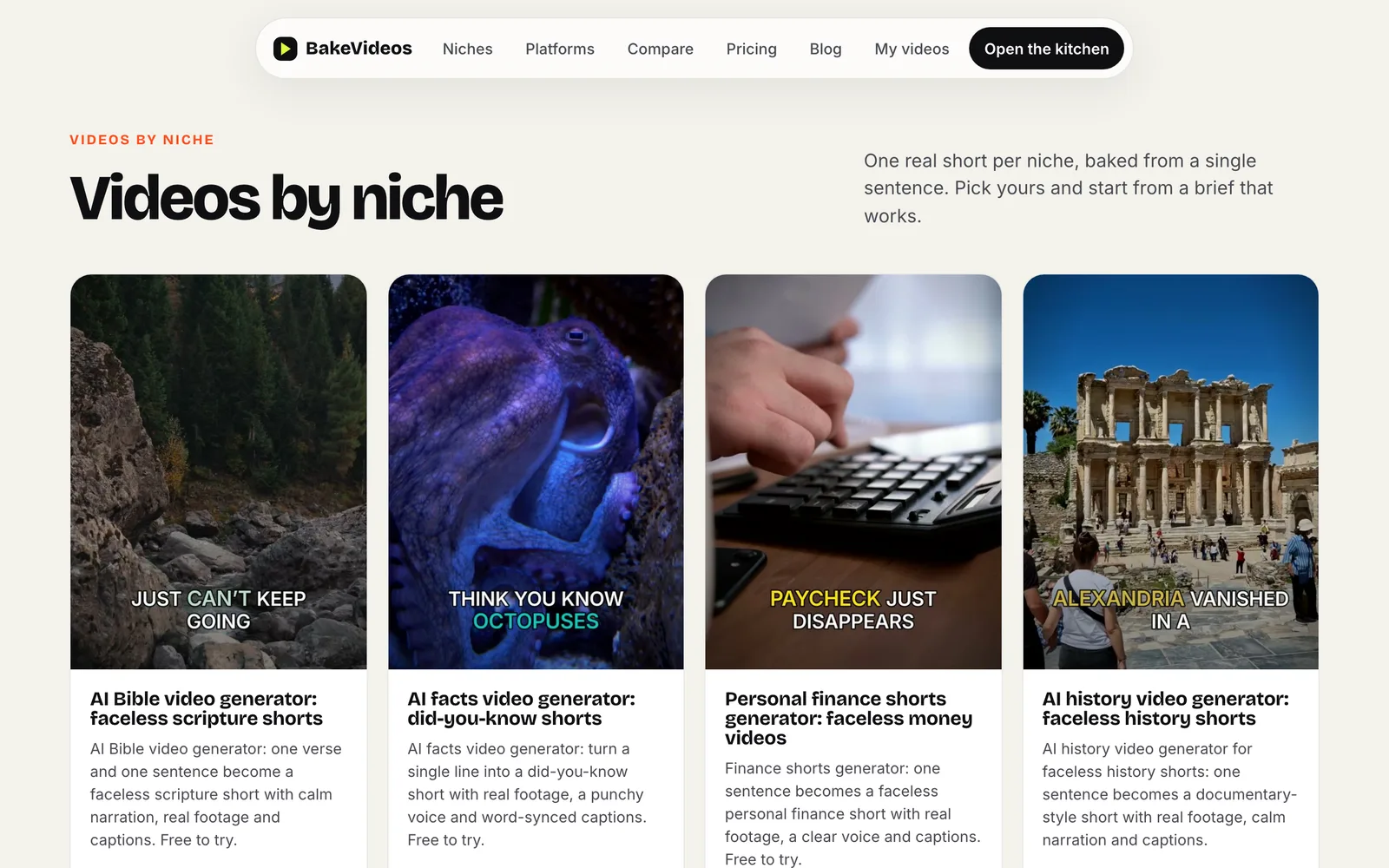
For app marketers it works because "product ads" is on their niche list and because the scene editor lets you put your own material in. It's not a product video tool in the Rotato sense. There's no 3D device, no app UI animation. It's a story tool that lets your app be the last line of the story, which for cold social traffic is usually the better pitch anyway.
Pricing as of early October 2026 is pre-launch, and they say subscribers keep the price they sign up at:
| Plan | Pre-launch price | At launch | Shorts / mo | Long videos / mo | For |
|---|---|---|---|---|---|
| Creator | $24/mo | $39/mo | 40 | 4 | One channel, posting daily |
| Pro | $49/mo | $79/mo | 100 | 10 | Two or three channels |
| Studio | $99/mo | $159/mo | 250 | 25 | Agencies and client work |
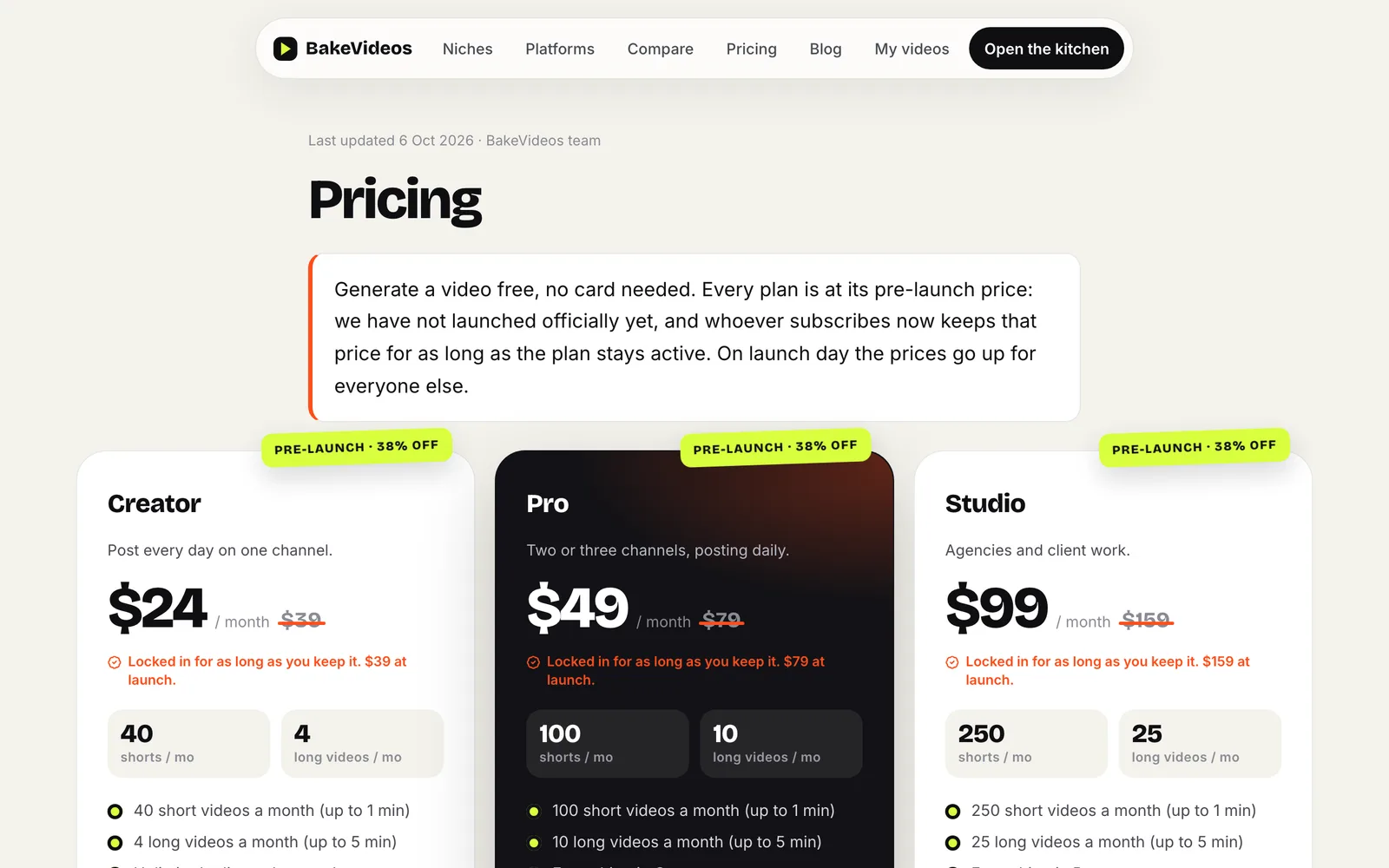
Every plan includes all voices and formats, your own clips and photos, unlimited edits and re-renders, and 1080p MP4 export with no watermark. You can generate a video free with no card to see what it produces. Their refund line is to email them within 14 days and they'll sort it out.
For a solo developer, Creator is plenty. Forty shorts a month is more than one app's social account can sensibly post, and the long-video credits cover a monthly YouTube explainer.
Where this fits next to SnapMonk
We make screenshots and ASO tools, not video. The two sit next to each other rather than on top of each other. The SnapMonk composer produces the frames; BakeVideos produces the motion around them. If you're already on a SnapMonk plan, you've got the screenshot half of this workflow done, and the ASO keyword list you built for the store listing is also a decent list of video hooks. The keywords people search for are the problems they have, and problems make better briefs than features.
FAQ
How do I make a promo video for my app without showing my face? Use a faceless AI video generator like BakeVideos. Write a one or two sentence brief that frames a problem your users have and names your app at the end, choose 9:16, and let it generate the script, voice, licensed footage, captions and music. Then open the scene editor and replace the footage in the scene where your app is named with a real screenshot of the app. Export the 1080p MP4 and post it to TikTok, Reels or Shorts.
Can BakeVideos generate my app's screens? No. BakeVideos states that it can't produce your own face, real celebrities, copyrighted characters, or your app's own screens. For an app you upload real screenshots or clips into any scene. Generate those screenshots with a tool like SnapMonk at the standard 1290×2796 App Store size, which is already a 9:16 aspect ratio and fits a vertical video without cropping.
How long does BakeVideos take to make a video? About a minute for a 20 to 40 second short, according to their FAQ, and the homepage demo shows a render in 48 seconds. You can watch each step (script, voice, footage, captions, render) and cancel at any time. Edits re-record only the scene you changed, and re-renders are free on every plan.
Can I use an AI-generated video as my App Store preview? Not safely. Apple's app preview guidelines require footage captured from the app running on the device, and a stock-footage explainer with a screenshot in it is likely to be rejected. Use faceless AI videos for social media, ads and your website, and keep App Store previews to real screen recordings of the app.
How much does BakeVideos cost? Pre-launch pricing in October 2026 is Creator at $24 a month for 40 shorts and 4 long videos, Pro at $49 for 100 shorts and 10 long videos, and Studio at $99 for 250 shorts and 25 long videos. Those rise to $39, $79 and $159 at launch, but early subscribers keep their pre-launch price while the plan stays active. There's a free video to try with no card.
Is stock footage from BakeVideos safe to monetize? BakeVideos sources real footage from Pexels and Pixabay, both of which license clips for published videos and ads, and it stores a license record with every render. AI-painted pictures are generated for your video and are yours to use. Voices and generated music are license-free. If a video uses AI pictures, the studio reminds you to apply the platform's AI label when you post.
Related Guides
- How to get your first app installs: why store search is the floor and social video is a spike
- App launch checklist for store assets: every screenshot, preview and graphic the stores ask for
- App Store screenshot sizes: the exact pixel sizes, including the 9:16 ones that drop into video
- How to design App Store screenshots: caption and frame rules that also hold up in a feed
- How to create app screenshots with AI: the SnapMonk side of this workflow
Keep reading
App Store Rank Tracking: How to Track Your Keyword Rankings Daily (and What to Do When They Move)
What app rank tracking is, which keywords to track, why daily is the right cadence, how to read a rank drop, and how SnapMonk's Rank Tracker does it for your app per country.
Read articleHow to Connect App Store Connect to an ASO Dashboard (API Key Setup, What You Get, What Apple Won't Give You)
Step by step: create an App Store Connect API key, connect it to SnapMonk's Store Insights, and see your impressions-to-download funnel, sources, markets and daily downloads next to your screenshots. Plus the honest list of what Apple's API doesn't expose.
Read articleHow to Make App Store Screenshots for iPhone Duo (Folded and Unfolded)
A design approach for Apple's foldable: when to show the Duo open vs closed, how to use the hinge, what the squarer aspect ratio does to your captions, and how to render Duo mockups in SnapMonk today.
Read articleReady to AI-generate your app screenshots?
Describe your app, get store-ready visuals in seconds. Try SnapMonk free — no signup required.
Try the AI Engine